Documentation sections
Account
Notifications
Each kind of notification is turned on separately for three channels: the dashboard (bell and history), email and Telegram. Settings are on the “Notification settings” page.
On this page
Set up what to send and where
Open the settings
Account menu (your name in the top right) → Notification settings.
Turn on channels
The All sections row 1 turns a channel on or off everywhere at once. Below are toggles for each section: support, platform reviews, the weekly “Who checked you” digest, offer, offer pass rate, White Page, domain reputation, auto-tuning, shadow mode, invoices and payments, plan expiry and limits, trial, domains and servers, team, news.
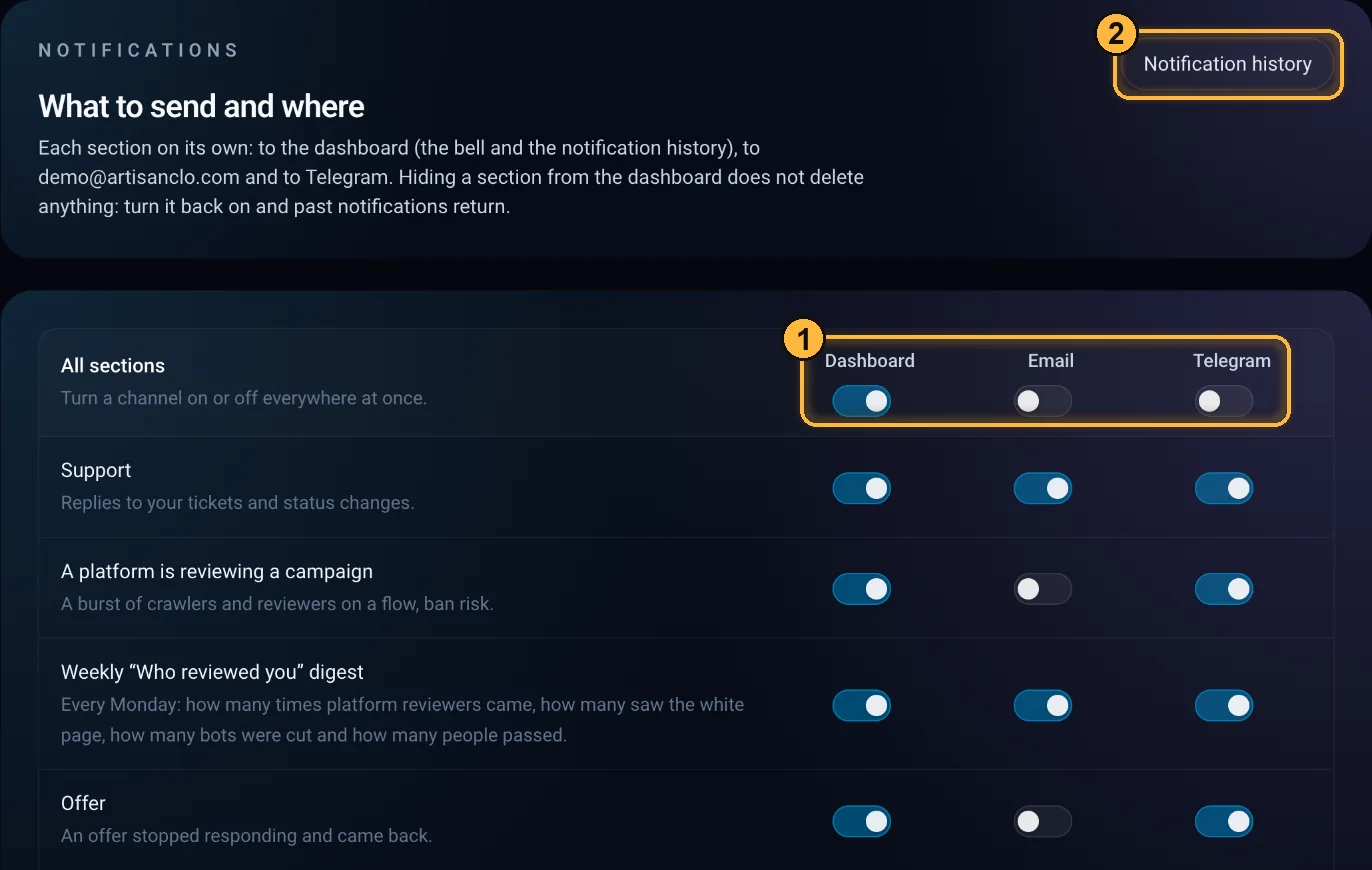
1 all sections at once, 2 notification history. Link Telegram
Telegram is connected on the “Security” page, in the Telegram notifications block: the Connect Telegram button opens the bot, where you press Start. If Telegram isn't linked, there's a Link Telegram link below the table that leads to the same place. To disconnect, use the Disconnect button on the same page or the
/stopcommand in the bot.Set quiet hours
The Telegram quiet hours block: 23:00 to 08:00 in your time zone by default. During quiet hours, Telegram messages arrive without sound, while the dashboard and email get notifications as usual. The Stay silent during quiet hours toggle turns quiet hours on, and Alerts ring at once lets alarms (the offer is down, a platform is reviewing a campaign, the plan is running out) ring during that time too. Support replies always ring.
If you turn a section off for the dashboard, its notifications aren't deleted: turn the section back on and past notifications come back. The “Security” section can't be turned off: emails about a changed password, email or profile, two-factor authentication turned off, new backup codes and suspended team access always arrive.
By default, email is off for the “A platform is reviewing a campaign”, “Offer”, “Offer pass rate”, “White Page”, “Auto-tuning”, “Shadow mode” and “Service news” sections, and “Auto-tuning” has Telegram off too. A team member gets no emails by default. Turn on email copies of alarms in the rows you need yourself.
Bell and history
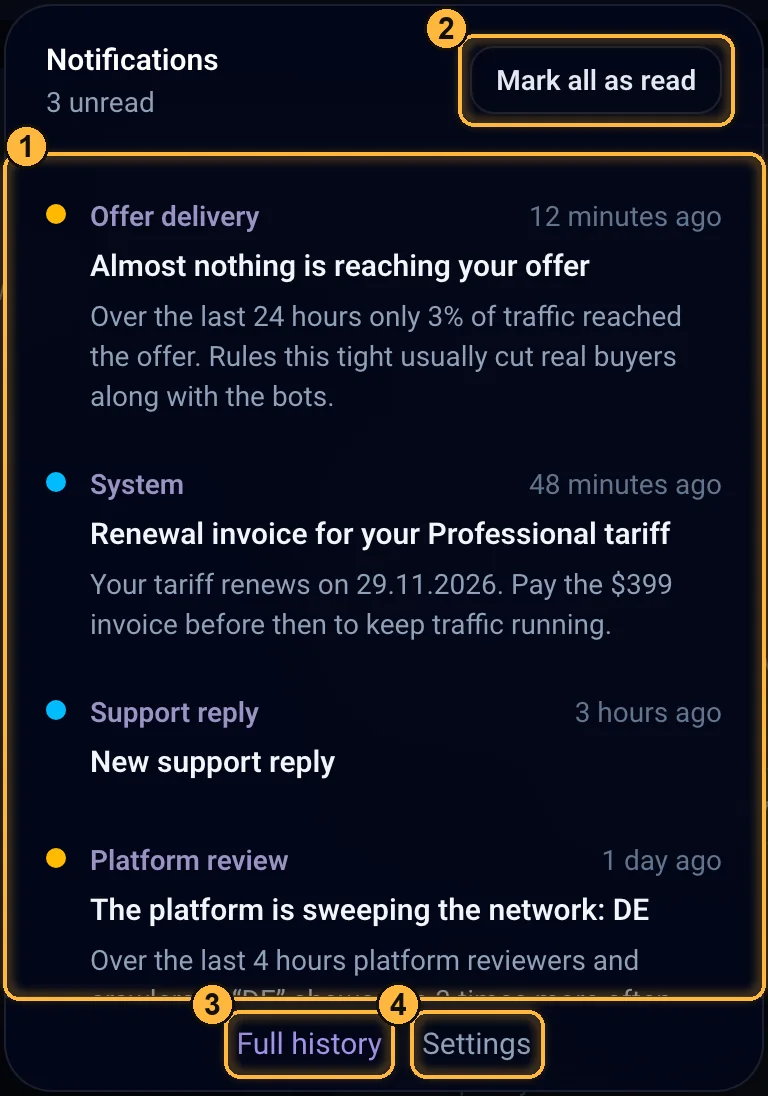
- The bell in the header shows the latest notifications; Mark all as read 2 clears the new marks.
- Notification history 3: the full list with filters. Notifications are kept for 180 days.
- The Open button in a Telegram message lets you into the dashboard without a password for an hour (with two-factor authentication, it asks for the code first).
- A team member gets notifications only for the sections of their role.
- Webhooks: events for your own systems, set up through the API.
Emails
- Account, always sent: email confirmation, password reset, password changed, two-factor authentication turned off, backup codes issued, profile changed, email changed (sent to the old address), team access suspended or restored.
- First week (turned off in the “Trial” section, “Email” channel). If on the trial there are still no visits by day 3–4, you'll get an email with a connection tip during the day in your time; without a trial, this tip arrives on day two at 10 a.m. Once traffic starts, no earlier than day three, at 10 a.m., you get an email with your first numbers.
- Other: the team invitation always arrives; a reply to and status change of a support ticket follow the “Support” section and can also be turned off with the “Email” channel.
ArtisanClo · Dashboard documentation. Questions — info@artisanclo.com or @artisanclo_support on Telegram.